


CMS can be used as a collaboration tool. The History/Undo and Versioning facilitate a cooperative editing environment.
While working in groups on a page, it may be useful to see the changes made by another contributor. Page change history is kept for at least 30 days. History older than 30 days is not guaranteed to be available.
Differences from the live version


The Workspaces module shows a summary of all changes to page and content elements in the draft copy from the current published version, known as the Live version.
To reveal a difference view showing removed parts in redline and added parts in green, click the small right-pointing arrow left of the content element title (next to the checkbox).
The module also shows the current status of the content (Editing, or Ready for Publish).
Cancel unpublished changes (Discard)
Before a change is published, it is very easy to cancel changes using Discard.
The Discard action is not undo-able. Do not discard content changes unless you are either certain they are not needed or that you can recreate the changes again.
Discard one element at a time
- Click the Workspaces module
- Click the page in the pagetree where you want to cancel unpublished changes (where you want to revert to the version that visitors see)
- Locate the specific element you want to discard. This may be either the page element or a content element
- Click the trash bucket button for the record change you want to cancel (hover your mouse over the record to reveal the trash bucket button)
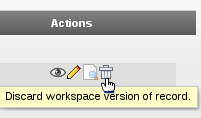
- Click Yes in the confirmation dialog window to confirm
Discard all changes in the workspace at once
- Click the Workspaces module
- Click on your department's main page
- At the bottom of the screen, choose Discard from the choose Mass Action menu
- Click Yes in the confirmation dialog window to confirm that you want to discard all changes in the workspace, even ones that aren't displayed on the current list of changes
After discarding the change, the element will be reverted to the live version (what the visitors can see when they visit the page). This means if the page or content element was never published, it will be thrown away completely (unrecoverable). If it was previously published, the changes to that content will be thrown away (unrecoverable) and visitors will still see the last-published version.
Revert selected changes


Each time you save a content element as you work on it, an "undo point" is created. You can rollback changes to any of these points.
To undo specific changes to a page or page content,
- Right-click on the page in the tree and click History/Undo
- In the table of changes, click the
 button for the change you want to undo
 - In the working area, click the rollback button for the change you want to revert.
There will be rollback buttons for each change that can be rolled back. will undo all of the changes shown.
 will roll back just the content element adjacent to the button. If only one content element has changed since the time you are rolling back to, both buttons will do the same thing.
 will roll back just the field shown (if you change both the bodytext and the heading, you can choose to undo only one of those two fields). If you only changed one field since the time you are rolling back to, all three buttons will do the same thing.