


Create a new page
To create a new page
- Click the New Page
 button at the top of the Pagetree
 - Click and drag the button correlating to the type of page you would like to insert into the desired location in the Pagetree
- Release the mouse button to drop the page in place
Configure the new page
- Open the page record for editing
- Right-click the page in the Pagetree
- Click Edit
- In the General tab, select a Page Type (note that this is usually Standard)
- Enter a page title in the Page Title field
- To configure a different page URL segment than default, insert the preferred URL segment in the Speaking URL path segment field
- Optionally hide the page from navigation menus in the Access tab by checking the In menus > Hide checkbox. This will make the page visible once published, but not displayed in the navigation menu or sitemap
- Save and close the page record as usual
Create a special page
Begin to create a new page as normal.
To specify a different page type,
- From the Type menu, select the appropriate page type
- Click OK in the confirmation dialog that opens
- Fill out the additional form fields as applicable to the page type
- Save and close the page element as usual
Note that Hidden in menu and Hidden pages are slightly different and are enabled by checkboxes in the Access tab.
Special page types
 standard page - any page that should be visible in the navigation menu and available to visitors to view page contents.
 shortcut page
 external link page
 visual menu separator page (spacer)
 hidden in menu
 hidden
 sysfolder - a page that looks like a folder and holds content elements only. It can not display as a regular page. You do not have access to create this kind of page.
Shortcut page
A shortcut page works like a redirect within your site and appears in the pagetree as  .
.
You should use a shortcut page when you need a link to appear in the navigation menu in two positions.
Warning: Don't overuse the shortcut pages. You are responsible to keep track of all the shortcuts you create. If you create a tangled web, you will also need to un-tangle it.
External URL page
An External URL page works like a redirect to a page outside your site and appears in the pagetree as .
You should use an External URL page when you need a link to appear in the navigation menu to a web page that is not in your CMS workspace.
You do not need to create an External URL page for every link you will make to other sites. If you just want to embed a link in page content, you can insert a link to another site using the Rich Text Editor.
Warning: The http:// part of the Web address is included automatically from the Type pull-down menu so you should not include it in the URL field. If you do, your page will be created with a link like http://http://www.google.com and will not work.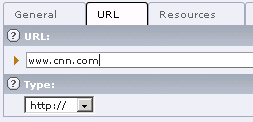
Tip: If you embed a lot of links to a particular external website in page content, you may opt to use the External URL page type to facilitate maintenance. For example, if you link to Campus Connection (CC) a lot and don't want to edit every page that links to CC when the CC login address changes, you could create an External URL page (hidden in menu if appropriate) and then create internal links to that External URL page in the RTE. The next time the CC login address changes, you only need to update the single external link page instead of every page where you inserted a link to CC.
Visual menu separator page (spacer)
A visual menu separator page contains no content and is not a clickable navigation link and appears in the pagetree as .
The appearance of this page type varies depending on your site's template, but for www.NDSU.edu department pages using the NDSU 2011 template, it looks like
This page type is only configured for the top level of navigation in the NDSU 2011 template. That means it is not visible at all in site navigation if its parent page is not the department's home page.
Hidden in menu
A page that is hidden in menu has the Page enabled in menus toggle disabled in Page properties and appears in the pagetree as a "dimmed" page.
You should make a page hidden in menu when you want a page to not appear in the site navigation menu.
Warning: visitors will only be able to find hidden-in-menu page if you insert a link to it in page content or if you tell them the Web address some other way (by email, print brochure, etc.).
Tip: Hidden in menu pages are good for pages that visitors wouldn't ever browse to.
Hidden
A hidden page is not visible to site visitors at all (even if they know the Web address) and appears in the pagetree as .
A hidden page has the Hide checkbox checked in Page properties.
Though the simpler method of keeping content hidden from visitors is to not publish it, if you need to publish a page, making it a hidden page will prevent visitors from knowing the page exists or viewing the page contents.
Create multiple pages at once
To create multiple pages at once, use the Functions module.
- Open the Functions module
- Select a page title in the page tree. The pages will be created as children to this selected page
- In the work area, enter the name of each page to create in its own field
- If the newly created pages should be inserted after existing pages, check the Place new pages after the existing subpages checkbox
- If the newly created pages should be hidden, check the Hide new pages checkbox
- Click the Create pages button
- In the dialog window that opens, click the OK button to continue creating many new pages
 Next step