Holds & Service Indicators (Faculty)
Viewing Service Indicators
- Go to: Self Service > Advisor Center > My Advisees
- A list of student advisees will appear
- Click on "View Student Details" for a selected student
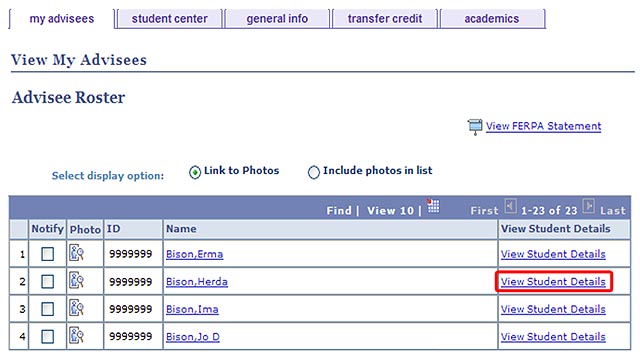
- Then, click on "General Info" in the navigation tabs to view any holds or service indicators assigned to that student

Releasing Holds
- Select a student from the "Advisee Roster" and click on the "View Student Details" link
- Click on the "General Info" tab
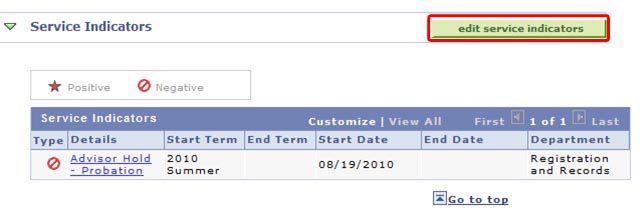
- If a student has a hold, it will appear under the "Service Indicators" heading
- Click on the green [Edit Service Indicators] button to view additional information about the service indicator
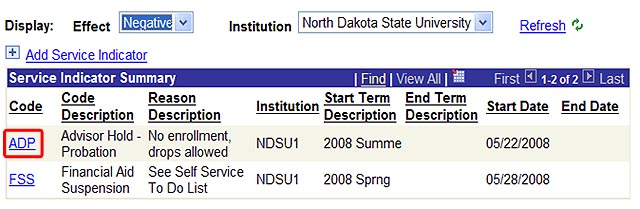
- Click on the appropriate Advisor hold (ADV or ADP)
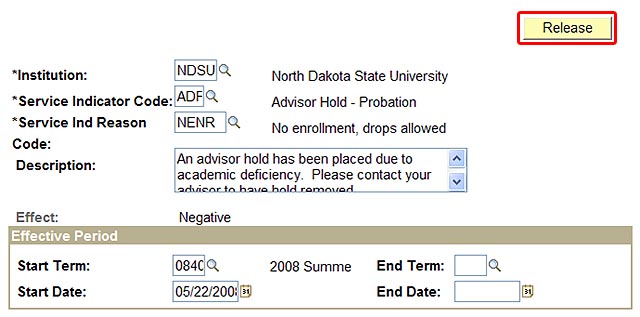
- Click the [Release] button to remove the hold
- Click the [Save] or [OK] button to save the changes
Placing Holds
- Select a student from the "Advisee Roster" and click on the "View Student Details" link
- Click on the "General Info" tab
- Click on the green [Edit Service Indicators] button to add a service indicator
- Click on the "Add Service Indicator" link either above or below the "Service Indicator Summary" frame

- Enter "ADV" (Advisor Hold) into the "Service Indicator Code" field
- Enter "NENR" (No Enrollment) into the "Service Indicator Reason Code" field
- Enter "Start Term" and "Start Date" into the "Effective Period" fields
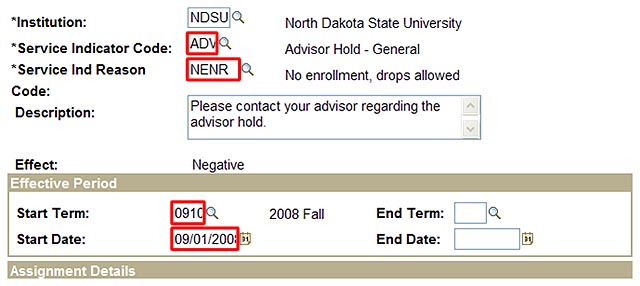
- Click the [Save] or [OK] button to save the changes