Request Form Instructions
NOTE: Depending on personalized browser settings (pop-up blocker, etc.), the Astra Room Scheduler may not work in your preferred browser. If this is the case, please try to open the scheduler using another browser (Mozilla Firefox, Google Chrome, Safari).
- Click on the "Request an Event" link to advance to the "Event Request Wizard".
- NOTE: Logging in is NOT required.
- Select "NDSU Event Request Form" from the drop-down selection box and click the [Next] button to continue to the form.
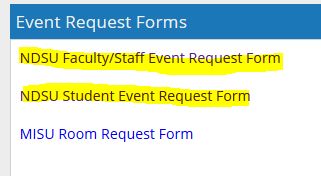
- Complete the necessary form fields and click the [Submit] button at the top of the form to submit the completed Event Request Form.
- Read the confirmation message on the following screen and click the [Done] button when finished.
- Clicking the [Done] button returns the user to the "ASTRA HOME" screen
- As the confirmation message states, you will be notified by email of your event's status (via the email address provided on the form) once your event request has been approved.
NOTE: Because the email notification is distributed by a third-party system (Campus Connection), the email message may be treated as spam and may be filtered into your "Junk Email" folder in Outlook. Please add the "@ndsu.edu" domain to the "Safe Senders" list in your "Junk Email Options" or contact the ITS Help Desk (231-8685, option #1) for assistance.
Questions or Problems:
If you find you cannot successfully submit the online “NDSU Event Request Form”, please try using a computer in an NDSU cluster or kiosk or come to Registration and Records in 110 Ceres Hall to complete an online request.