Presentation Tools
Stand out with our collection of presentation tools, including Google Forms headers, PowerPoint and Google Slides templates and Zoom backgrounds. These resources are designed to help you create materials that maintain consistency with the NDSU brand.
Google Forms Header
NDSU offers a header image for use on your Google Forms. To download, click on the image to enlarge, right-click (or Control-click) on the image and select "Save Image As..." You can then upload the image to your Google Form.

PowerPoint and Google Slides Templates
NDSU PowerPoint and Google Slides templates are designed to help you create professional presentations while maintaining a consistent NDSU brand.
PowerPoint templates
Available as downloadable files
Google Slides templates
Available as an editable copy in your Google Drive
PowerPoint Templates
PowerPoint templates are provided as .potx files in a 16:9 ratio. When opening a downloaded template, PowerPoint automatically creates a new, untitled presentation using the university’s approved design elements. See the instructions section for how to use the template, save your presentation and preserve the original template for future use.


PowerPoint Template Instructions
After downloading a PowerPoint template, follow these steps to ensure it displays correctly and follows university guidelines.
Google Slides Templates
Google Slides templates allow you to create a copy in your Google Drive. Click the link for the template you'd like to use, and you will be prompted to Make a copy. See the instructions section for more details. Access to these templates is restricted to users with NDSU credentials.


Google Slides Template Instructions
After making a copy of a Google Slides template, follow these steps to ensure it displays correctly and follows university guidelines.
Zoom Background Graphics
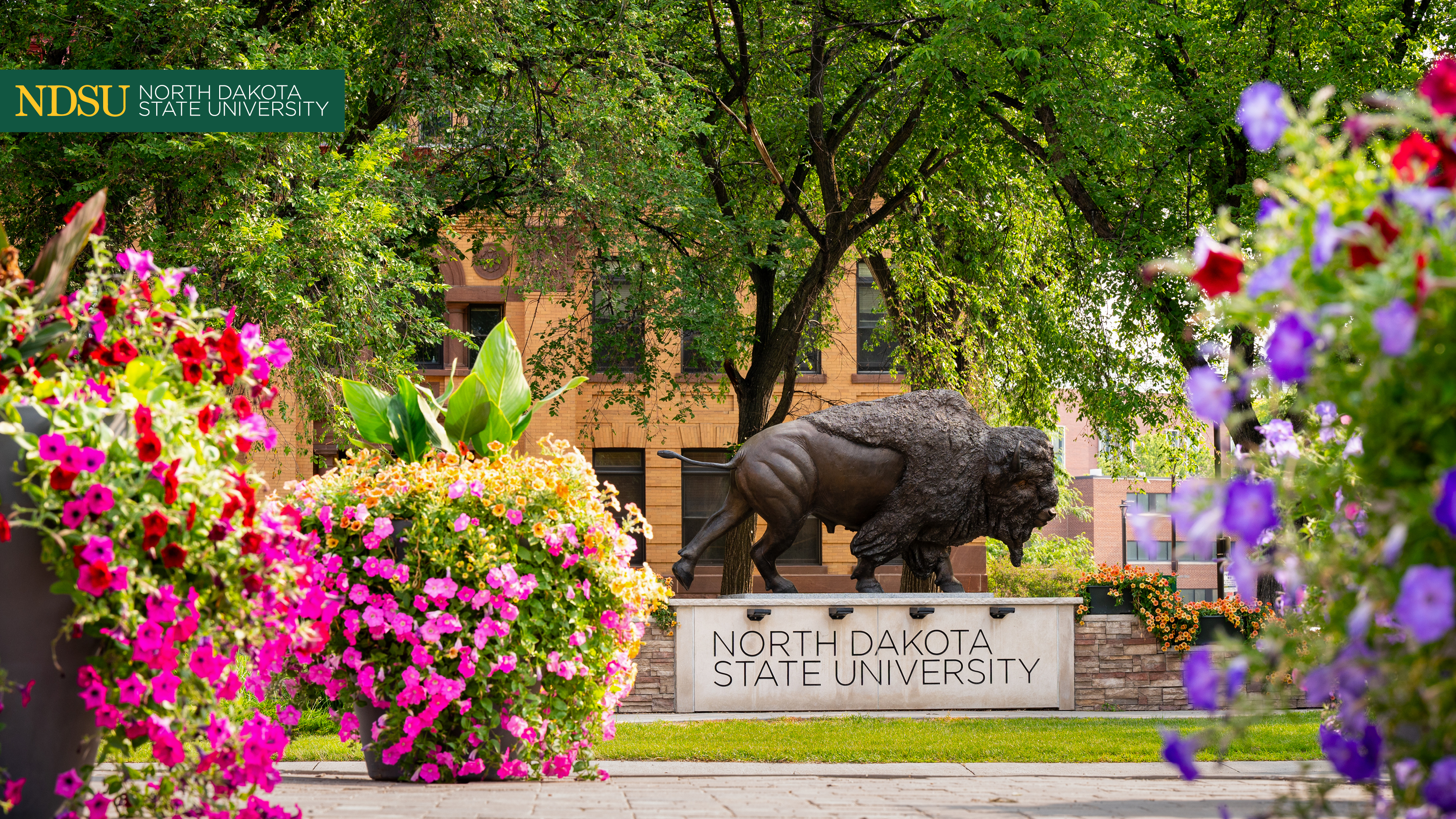
NDSU offers these images for use on your Zoom video conferences. To download, click on the image to enlarge, right-click and select "Save picture as..." to save to your desktop.
Follow these steps when you open Zoom:
- Click on your initials in the top right hand corner and click on settings.
- Click “Virtual Background” on the left hand side.
- Click the plus sign above the pre-generated images in Zoom, and select add image.
- Find your saved image, select it and hit open.
This will allow you to preview the new background. If it appears to be reversed, deselect the box that says “Mirror my video.”