Presentation Tools

Stand out with our collection of presentation resources, including Google Form headers, PowerPoint templates and Zoom backgrounds, designed to keep your work consistent with NDSU’s brand.

Google Form Header

NDSU offers a header image for use on your Google Forms. To download, click on the image to enlarge, right-click (or Control-click) on the image and select "Save Image as..." You can then upload the image to your Google Form.

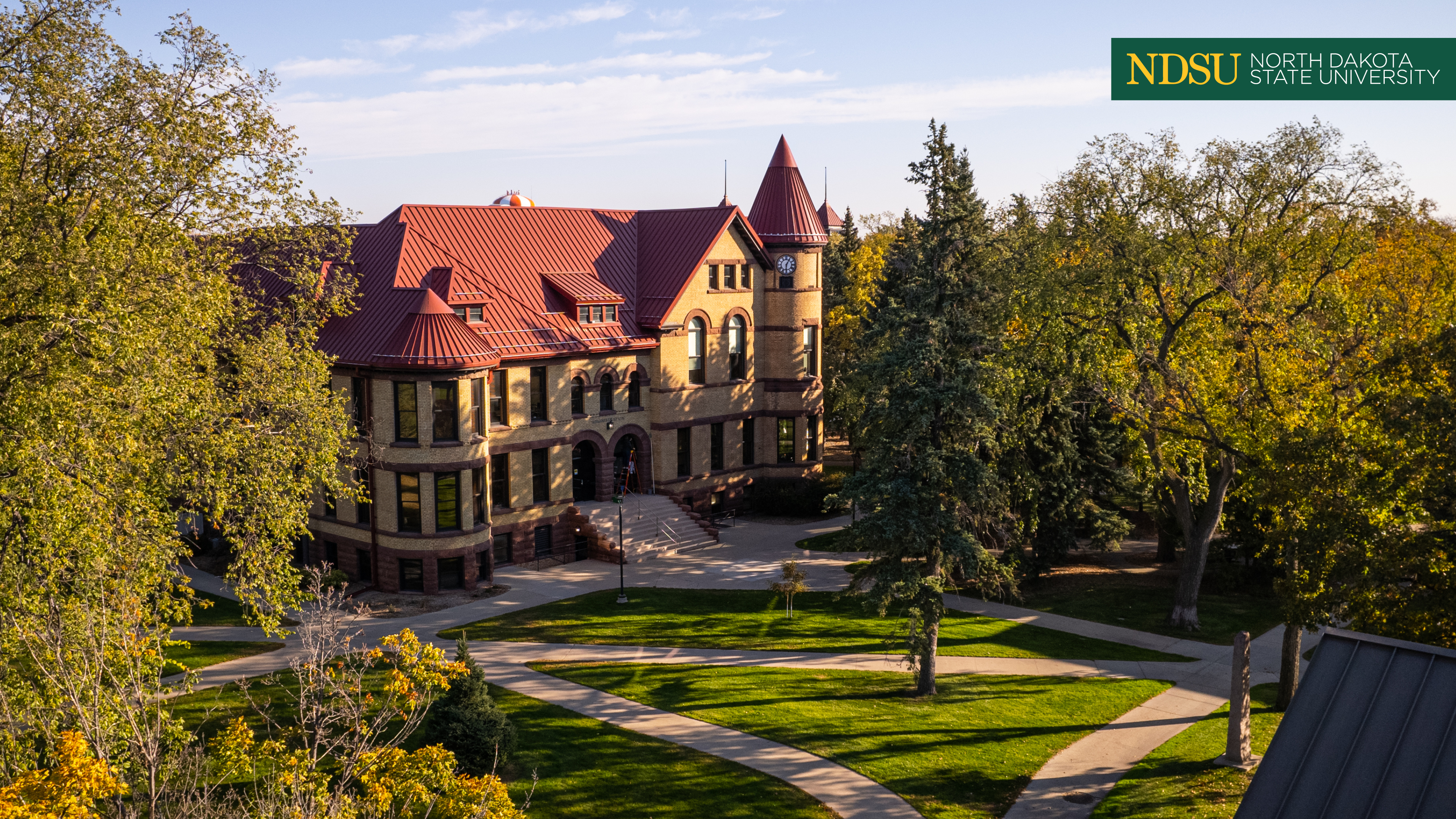
NDSU logo and Old Main with a green overlay

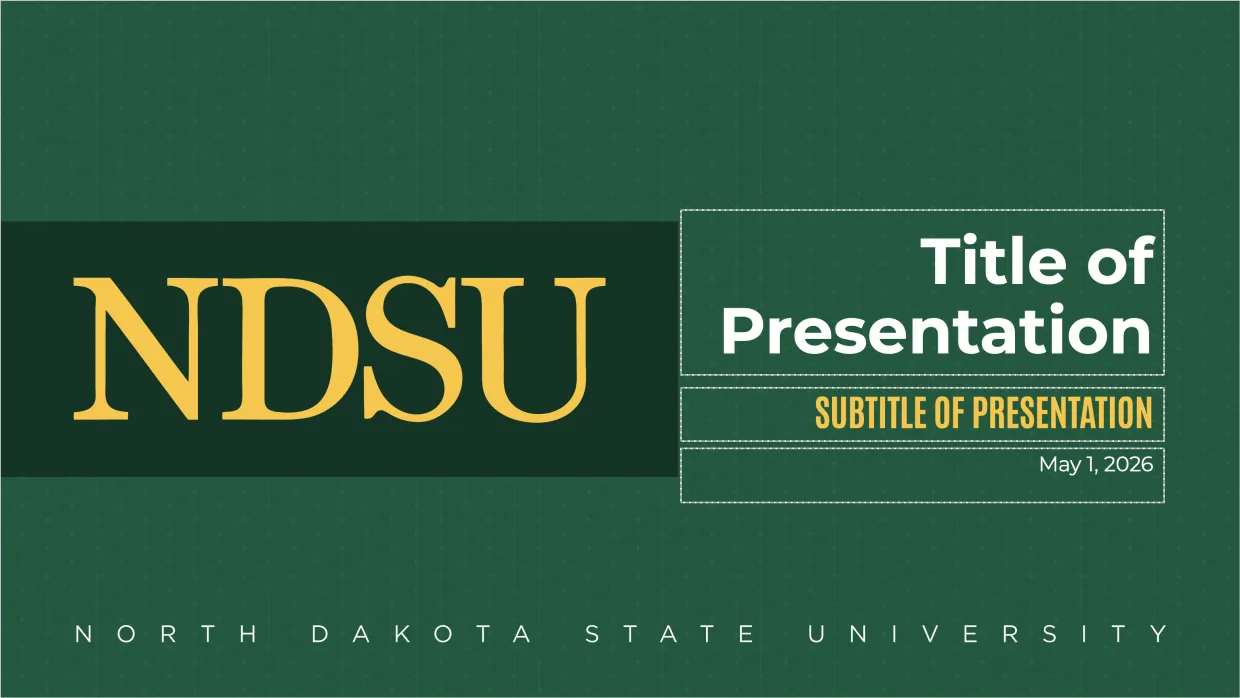
Powerpoint Templates

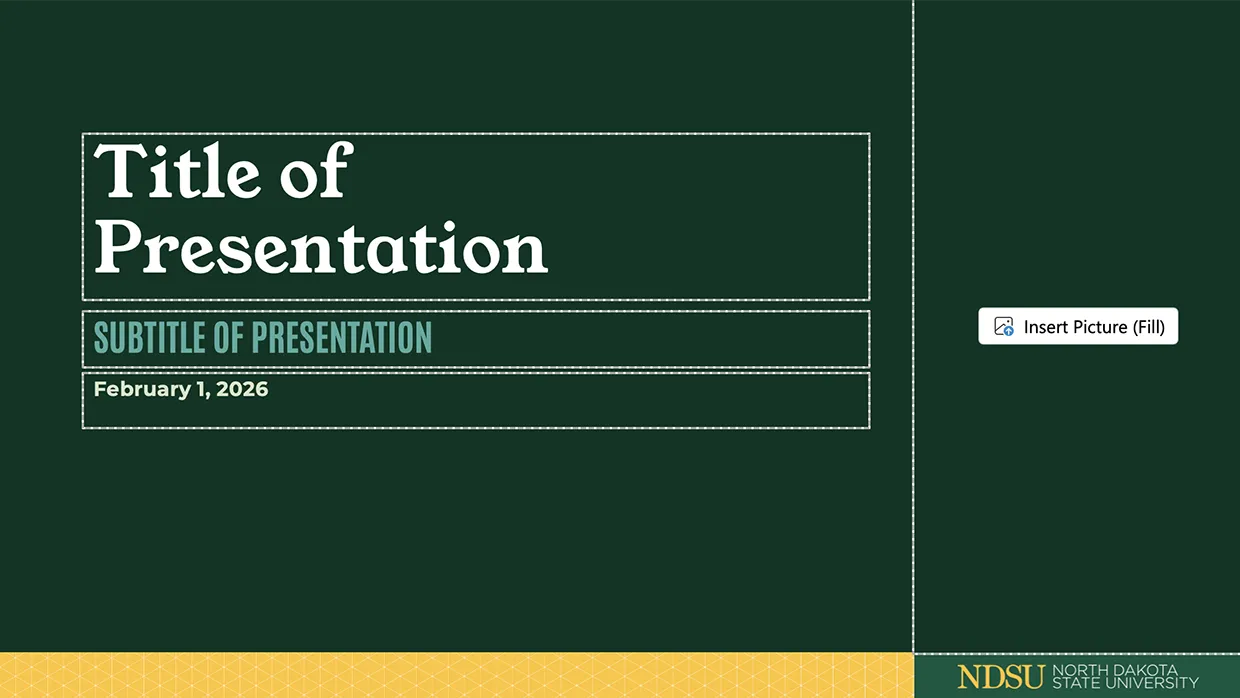
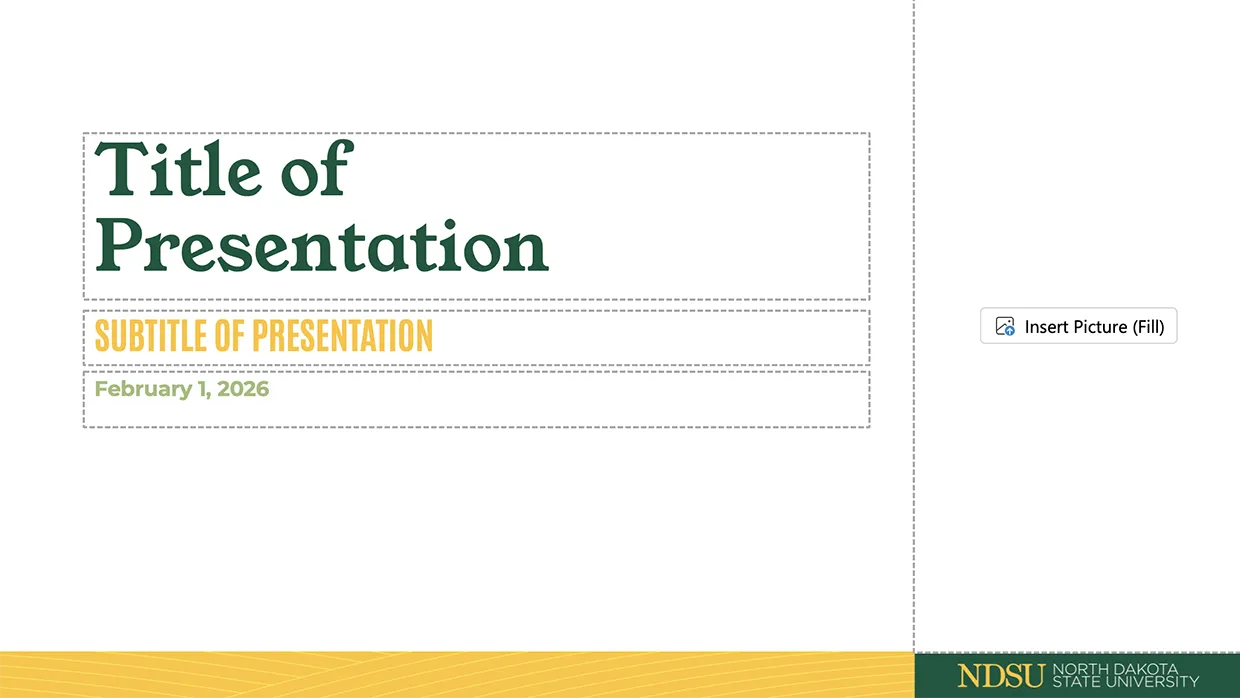
NDSU PowerPoint templates are designed to help you create visually appealing presentations with ease. Each downloadable template aligns with NDSU’s brand and offers multiple slide layouts.

Downloads: file type

A .potx file is provided as the official PowerPoint template in a 16:9 ratio. When opened, PowerPoint automatically creates a new, untitled presentation using the university’s approved design elements, ensuring consistent branding. See the detailed instructions section for how to use the template and save your presentation while preserving the original template for future use.
PowerPoint Templates Instructions

After downloading a template, follow these steps to ensure it displays and functions correctly while following university guidelines.

The templates use three free Google Fonts: Young Serif, Antonio and Montserrat. If you do not already have these fonts, consider installing them. (The alternative is to accept Powerpoint's default fonts.)

Font installation instructions:

  1. Visit Google Fonts for each of the following fonts:
  2. For each font:
    • Click the Get Font button in the top right corner.
    • Unzip the downloaded file.
    • Double-click each .ttf file and select Install (Windows) or Install Font (Mac).
  3. If fonts appear incorrect, restart PowerPoint. If you are still having issues, double-check that all three fonts are installed.

  • To start using a template, open the downloaded .potx file.
  • Save a new copy as a .pptx file before editing so the original template remains unchanged for future use.
  • To find your slide options, go to Slides in the toolbar and select New Slide or Layout to view the available layouts.

  • Do not move or modify the logo or other placed graphics.
  • Maintain the layout and type sizes provided in the templates whenever possible.
  • Stick to the preset color palette for accessibility and visual consistency.
  • Use high-resolution photos that appear clear and sharp at their displayed size.
  • Use only photos you have permission to use (NDSU-owned or properly licensed).
  • Use animation effects sparingly, as they can be distracting.

  • Use short, clear titles that fit within placeholders.
  • Avoid stretching or distorting images when resizing.
  • Keep slides uncluttered — avoid overcrowding with extra text or graphics.
  • Do a final check in Slide Show mode to ensure everything appears correctly.
  • Are PowerPoint’s Design Suggestions getting in the way? Turn them off to keep your slides on brand and prevent PowerPoint from automatically applying its own styles.
    • Open PowerPoint.
    • Go to the Design tab and click Design Ideas so it is not highlighted, or
    • Go to FileOptionsGeneral (Windows) or PowerPointPreferencesGeneral (Mac).
    • Under PowerPoint Designer, uncheck:
      • “Automatically show me design ideas.”
      • “Automatically show me suggestions when I create a new presentation.”
    • Click OK to save your settings.

Zoom Background Graphics

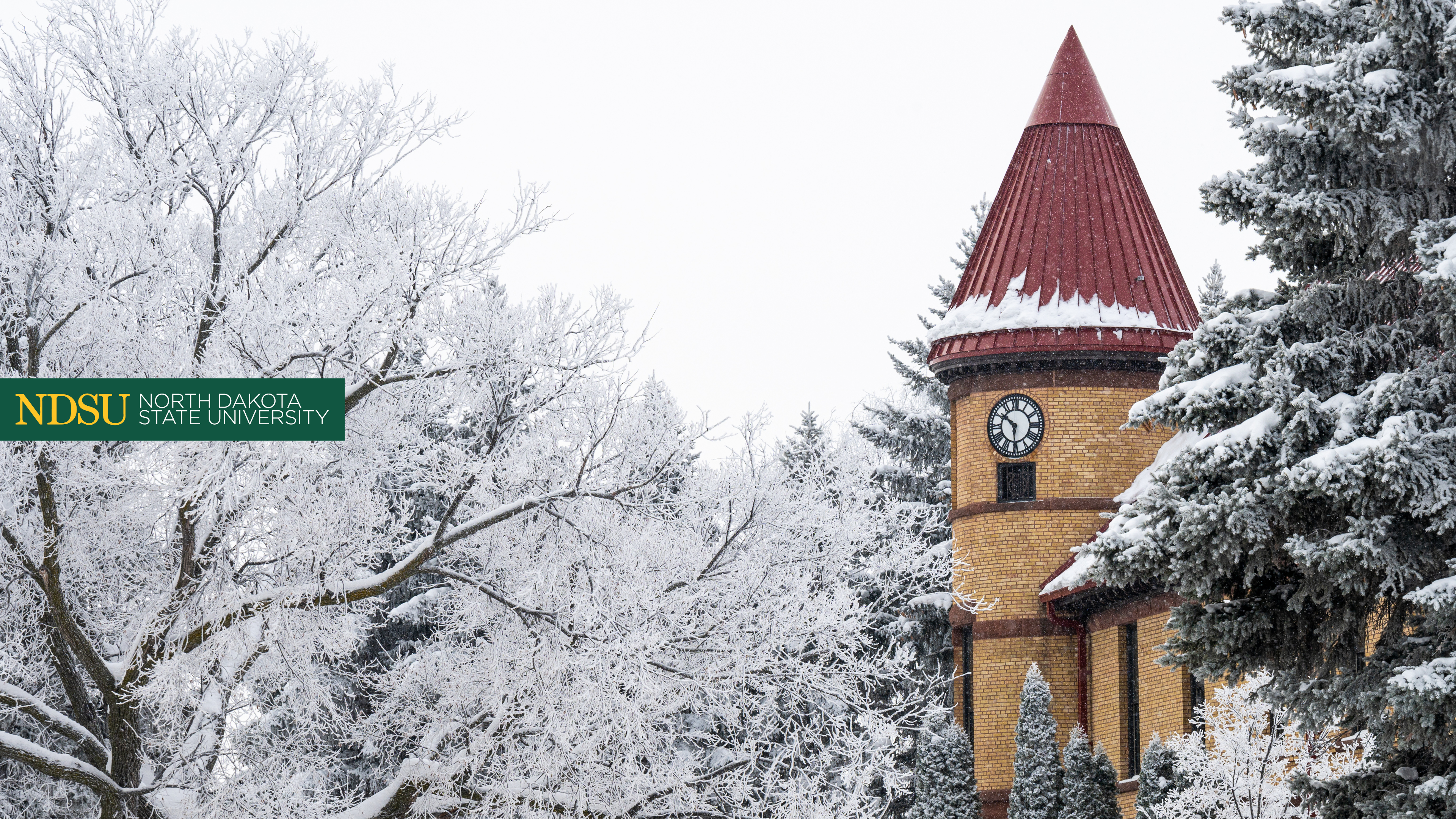
NDSU offers these images for use on your Zoom video conferences. To download, click on the image to enlarge, right-click and select "Save picture as..." to save to your desktop.

Follow these steps when you open Zoom:

  • Click on your initials in the top right hand corner and click on settings.
  • Click “Virtual Background” on the left hand side.
  • Click the plus sign above the pre-generated images in Zoom, and select add image.
  • Find your saved image, select it and hit open.

This will allow you to preview the new background. If it appears to be reversed, deselect the box that says “Mirror my video.”
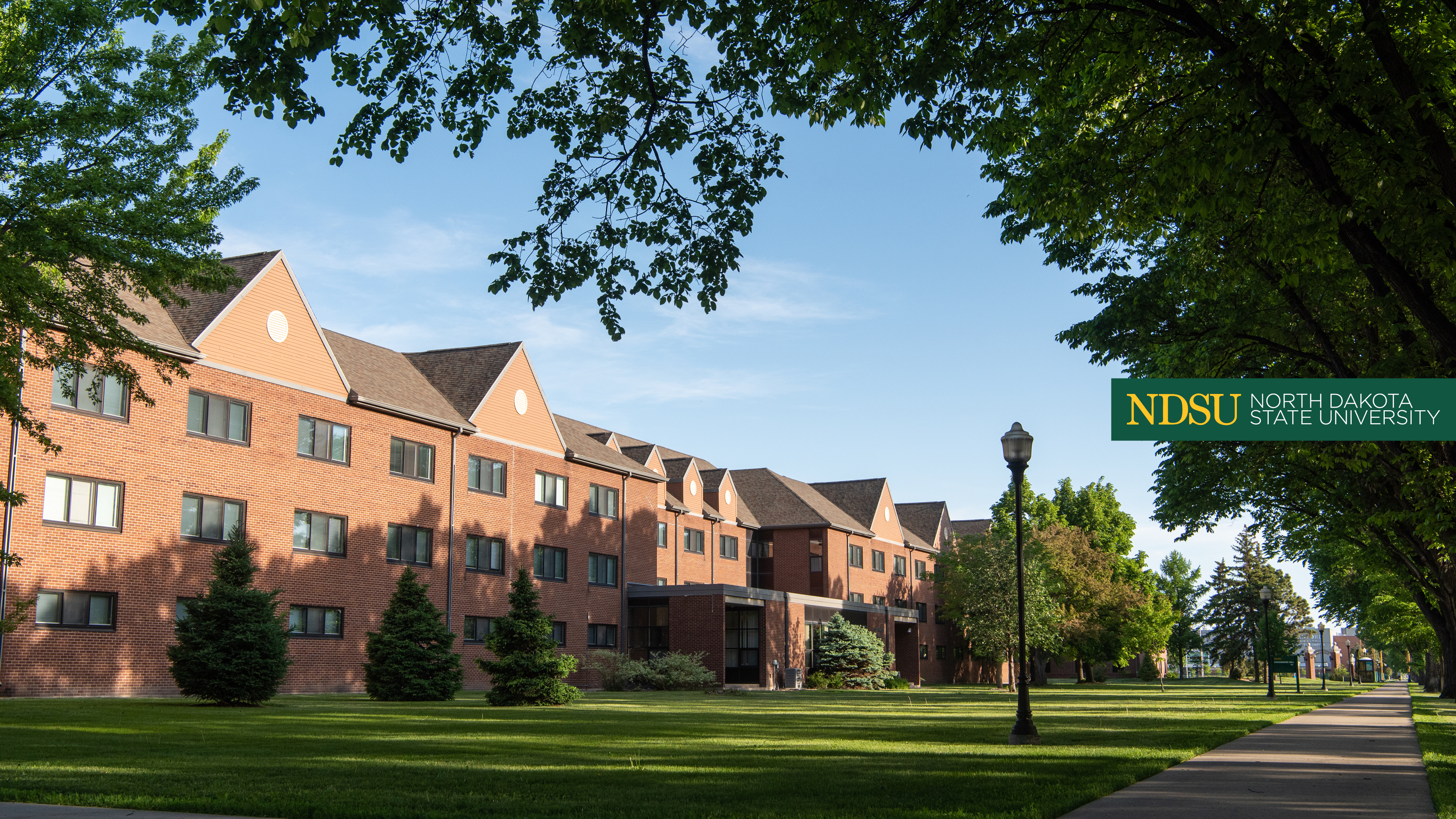
Stockbridge Hall
close up of Old Main clock on winter day
drone photo of Old Main
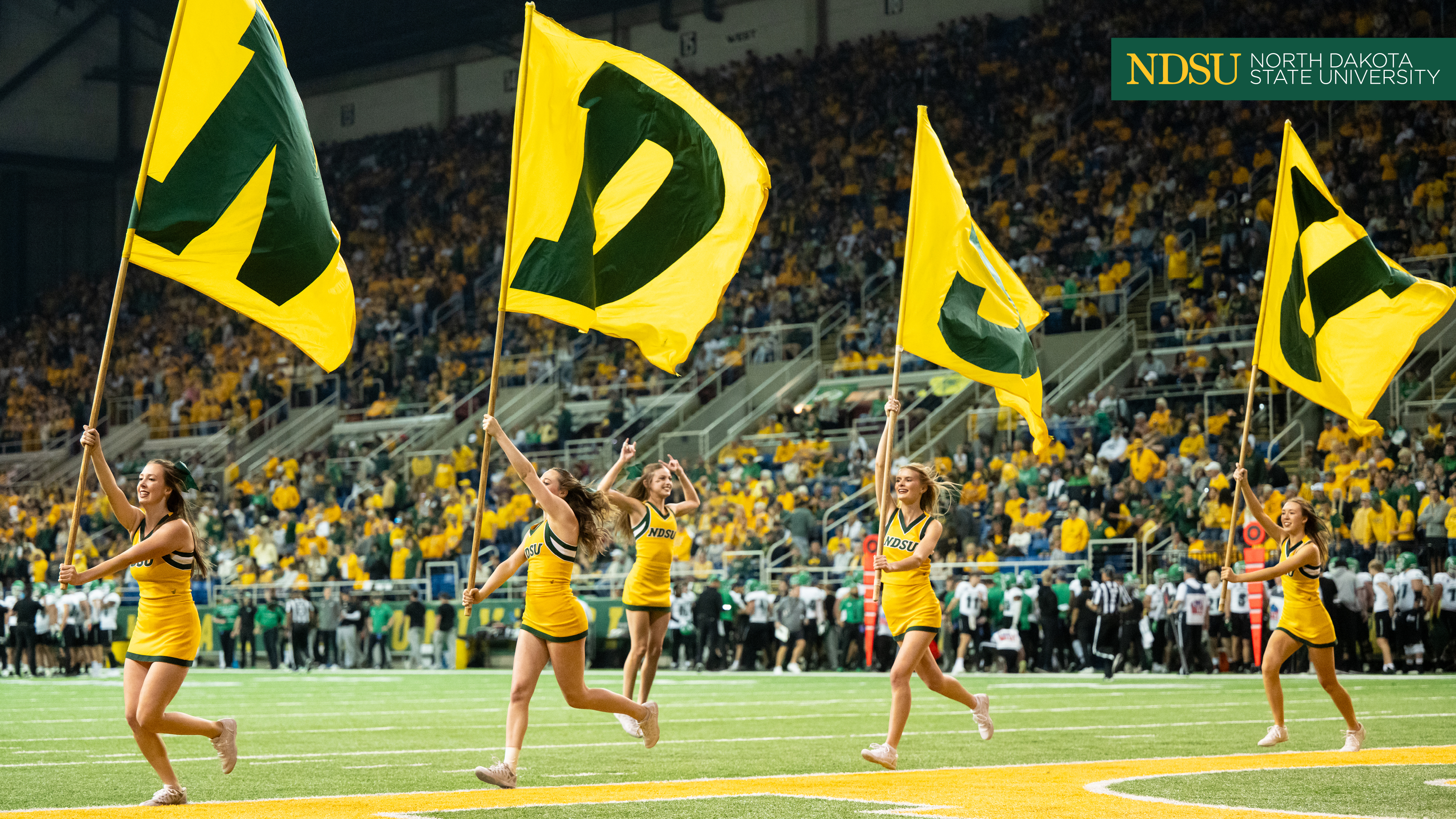
cheerleaders with NDSU flags on football field
Sunflowers and blue sky
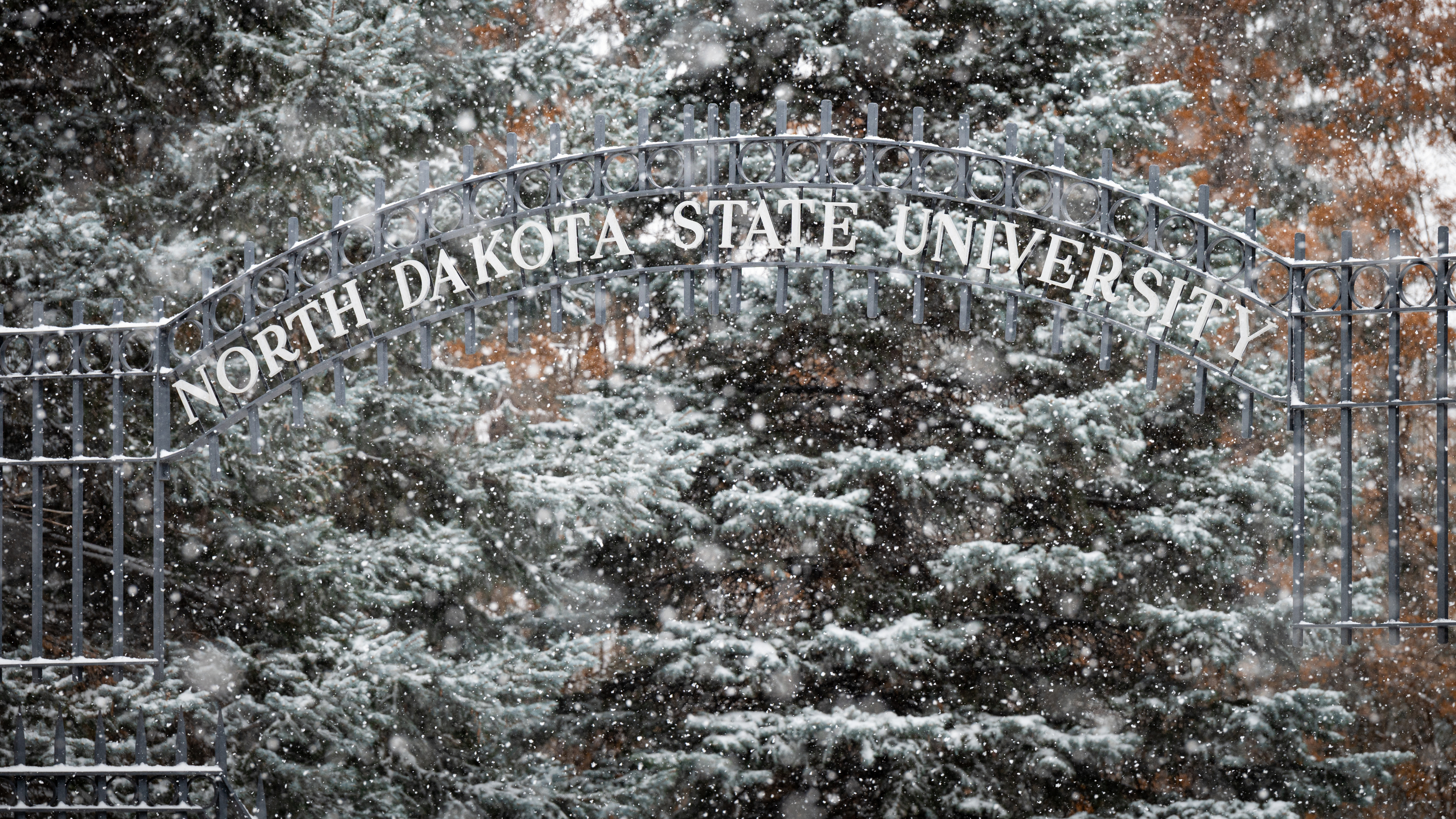
North Dakota State University main gate on a winter day
flowering trees in front of Morrill Hall
abstract photo of writing on whiteboard with a green overlay
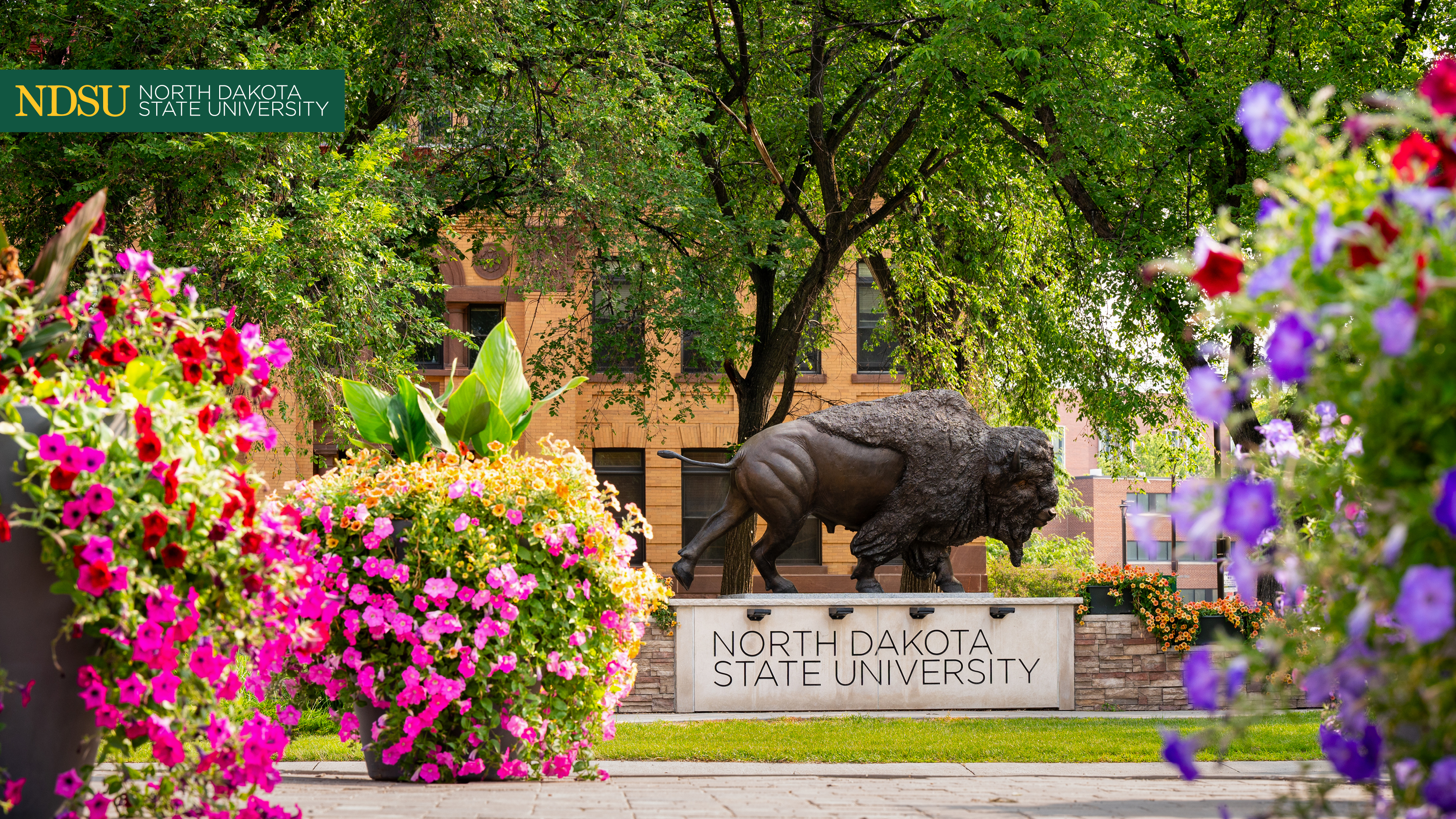
Bison statue in the background with colorful flowers in the foreground