Equations

Equations should be integrated into the text of your disquisition and not grouped at the end of a chapter. Display equations should be separated out of the body text onto a new line, whereas in-line equations may be included within body paragraphs, non-text item titles, tables, and etc. as long as they use Unicode characters in the same font as the paragraph text and do not interfere with line spacing.

Examples of formatted equations with an equation number can be found in our disquisition templates.

If you use a large number of equations in your disquisition, you should consider including a List of Equations in the prefatory material. Unless otherwise directed by the style manual of your discipline, including a List of Equations is optional. In the List of Equations, a brief title or description of the equation should be included in each entry. However, equations in the document chapters should not be given a title, and the equation should be described in your text. See our knowledge base entry on prefatory lists for our full guidelines, including instructions on making a List of Equations from scratch.

Guidelines: Equations

  • Equation position – Display equations should be on their own line, centered on the page. (With 1" margins, the center of a page is at 3.25".) Equations, like these, that are separate from your text are referred to as "display equations" in our guidelines, as opposed to in-line equations within text.
  • Numbering is optional – When you use display equations in your disquisition, you may number them to make it easier to reference them within the text. If you number any equations, then you should number all equations; if your disquisition contains proofs or series of equations, you may elect to number only the final step or product.
  • Number position – If a display equation is numbered, the equation number should be flush with the right 1" page margin.
  • Number sequence – Equation numbers should be sequential. You can number the equations ordinally by appearance in their chapter (such as 1.1, 1.2, 1.3, 2.1, 2.2, 2.3, etc.), or you can number them ordinally by appearance in the document (such as 1, 2, 3, 4, and so on).
  • Number label – Equation numbers must be enclosed in parentheses: "(1)". You may optionally include the label “Equation” or “Eq.” in the parentheses before the equation number: "(Equation 3.2)" or "(Eq. 3.2)". If you include a label for any equation number, label all equation numbers with the same label.
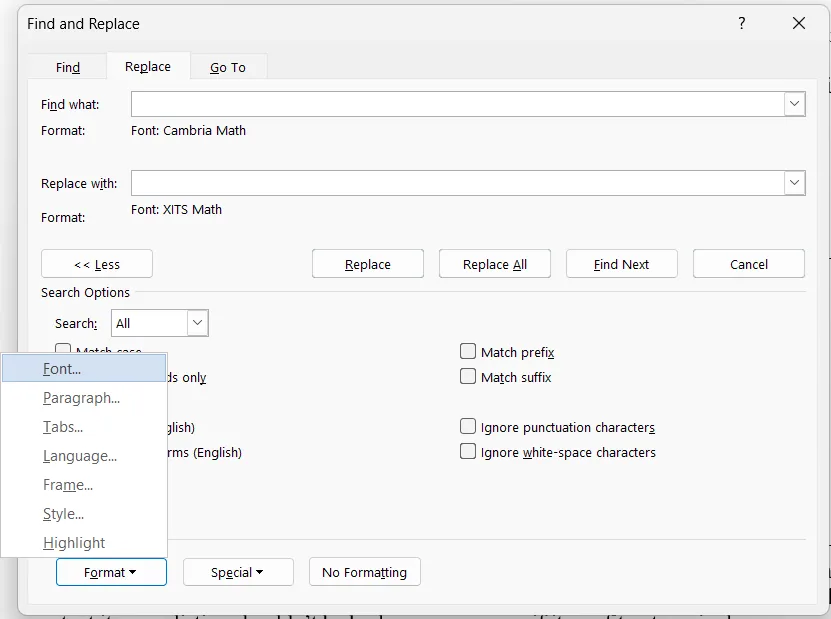
  • Font: display equation – Display equations may be in the same font as the paragraph text or use a different font, such as Cambria Math. All display equations should use the same font.
  • Font: equation number – If a display equation is numbered, the number should be in the same font as the paragraph text.
  • Font: in-line equations, etc. – In-line equations, variables, symbols, or functions outside of display equations should use the same font as the paragraph text; this includes includes operators and numerals. In-line equations, variables, symbols, and functions in paragraph text, titles, notes, or tables should be Unicode characters and not Word equations.
  • Alt-text – Content tagged as <formula> should have alt-text that describes it. Note that alt-text cannot be directly added to Word equations, and should not be directly added to formula tags in a PDF. See our equation accessibility requirements and the related issue on this page for more information.

Requirements:

  • Equations made with the Word equation editor, non-Unicode characters, and other items tagged as <formula> have alternative text that describes their purpose/function. (WCAG 1.1.1)
  • In-line equations, variables, symbols, or functions outside display equations should use Unicode characters. (WCAG 3.1.2)

Resolution:

  • Nest a <P> tag in the <Formula> tag that has a text alternative in an Actual Text attribute. This content can be accessed by NVDA.
  • Replace in-line equations, variables, symbols, functions, etc. in paragraph text, titles, notes, tables, etc. with Unicode characters.

See the issue entries on this page, below, for more information on creating alt-text for equations and building Unicode equations. See the entry in our knowledge base on digital accessibility for a list of PDF editors available to you.

Tutorials:

Video: Tagging a PDF

Text: Adding Alt-text to Formula Tags

  • MathCast is an open-source standalone equation editor that can export MathML equations to Word or LaTeX. It is free to use.
  • MathType is an add-in for Word available in the Office Store. It has a 30-day free trial and requires a subscription thereafter.
  • Mathpix is a suite of web, desktop, and mobile apps that can import or export equations for LaTeX, with support for Markdown rendered equations. It has relaxed usage limits for .edu accounts, and requires a subscription otherwise.
MathCast: Word & LaTeX

MathCast can be downloaded from its homepage. Run the program, and use its equation editor to build your equations. Before exporting any equations, change the clipboard copy type to MathML under Edit -> Settings. Do not export images into your document. MathCast will automatically generate alt-text for formulas, but like all automatically generated alt-text, it may not be in natural language and may require editing.

MathType: Word

MathType should be installed from the Office Store. Navigate to the Insert (or Developer) tab and select Add-ins to open the Office App Store; search for MathType and install it. To create equations, open MathType from the MathType Add-in tab and use the built-in equation editor. When converting to PDF, MathType will automatically generate alt-text for formulas, but like all automatically generated alt-text, it may not be in natural language and may require editing. See the MathType website for documentation.

Mathpix: LaTeX

Mathpix can be accessed from its homepage.

Page Contents
  1. Guidelines
  2. Frequently Asked Questions
  3. Troubleshooting
    1. Equation Alignment
    2. Inconsistent Font & Unicode Equations
    3. Equation Alt-text
Related Pages
  1. Digital Accessibility
  2. Tables, Figures, Schemes, Etc.
  3. Listings and Code
  4. Appendices
  5. List of Tables, Figures, Schemes, Etc.

Quick Answers

Yes. While display equations should be centered on their own line, in-line equations, variables, symbols, or functions can be included within paragraph text, titles, tables, etc. with some restrictions.

First, the in-line equation should not affect the line spacing of the content; for example, a tall equation should be excluded or reformatted to fit, and equations with divisors should use solidus notation. Second, the equation should be in the same font as the paragraph text. Third, these equations must use Unicode characters or otherwise be machine-readable, and alt-text is still required for in-line equations.

Do not use the Word equation editor for equations in paragraph text, titles, tables, etc. Instead, use the Insert -> Symbols menu for special characters and format scripts using font settings. Alternatively, use MathCast or MathType to create accessible MathML equations.

Numbering equations is optional, but if you choose to number equations then all equations should be numbered. However, some exceptions may be made. For example, if you have a series of equations that demonstrate how another equation is derived, numbering only the final equation makes more sense: it helps set it apart, and may be the only equation in the series that will be referenced elsewhere.

No; the List of Equations is optional. However, we recommend making a List of Equations whenever you reference equations across multiple pages or sections or if you have a large number of equations. Like a List of Abbreviations or List of Symbols, having a List of Equations improves your reader's experience navigating and referencing your document. The list of Equations should follow the general formatting of other prefatory lists.

Issue: Equations or their Numbers Not Aligned

Requirements:

  • Equations should be centered on the page. (Using the requisite 1" margins, the center of the page is at 3.25".)
  • If an equation is numbered, the equation number should be flush with the right 1" page margin.

  • Under paragraph settings, add a tab stop at 3.25" for equations and 6.49" for equation numbers.

Without a number, equations can be easily centered by using the alignment tool on the Home tab (hotkey CTRL+E). If your equation is numbered, use the steps and settings below to place a centered equation and right-aligned number on the same line.

  1. Place your cursor on the line with the equation, but outside of the equation editor.
  2. Open the paragraph settings for this line and use the following settings, also shown in the image below.
    1. Alignment: left
    2. Line spacing: single, with 0 pts before and 12 pts after
  3. Click the "Tabs" button at the bottom left of the paragraph settings dialog box to open the tab settings for the line. In the tabs settings dialog box, apply the following settings for two tab stops, also shown in the images below. After entering the settings for each tab stop, click "set" to save the settings.
    1. Position: 3.25", alignment: center, leader: none. This is the tab stop for the equation.
    2. Position: 6.49", alignment: right, leader: none. This is the tab stop for the equation number.
  4. Place your cursor in front of (to the left) of the equation and press the Tab key to move it to the first tab stop, centering it.
  5. Place your cursor in front of (to the left) of the equation number and press the Tab key to move it to the second tab stop, placing it against the right margin.

You can copy these formatting settings to other equations quickly using the Formatting Painter tool and its associated hotkeys. Do not use a table to align equations, or any other content, on the page; if you do, you will need to remediate the table in a PDF editor after converting your document. Furthermore, while the formatting above can be easily replicated across all display equations using the format painter, using a table requires you to repeatedly copy and paste multiple elements.

Issue: Non-Unicode Characters or Inconsistent Equation Font

Requirements:

  • Equations made with the Word equation editor, non-Unicode characters, and other items tagged as <formula> have alternative text that describes their purpose/function. (WCAG 1.1.1)
  • In-line equations, variables, symbols, or functions outside display equations should use Unicode characters. (WCAG 3.1.2)

Resolution:

  • Only use the Word equation editor for display equations.
  • Use Unicode characters, such as symbols from the Insert -> Symbols menu, to build in-line equations or reference variables, symbols, functions, etc. outside of display equations.

Display equations should use the same font. The default for the Word equation editor is Cambria Math, whereas MathType and MathCast allow you to change the default font. Explanatory or supporting text with your display equations may use the same font as the equation or paragraph text--choose one style and apply it consistently throughout all equations. If there are more than a few words of explanatory or supporting text with an equation, that text should be in the paragraph font.

In-line equations, variables, symbols, or functions outside display equations--such as in the paragraph text or a figure title--should also be in the same font as the paragraph text, and they should use Unicode characters. Numerals and operators outside of equations should always be in the same font as the paragraph text.

Do not use Word's equation editor except to create display equations; doing so will require you to create alt-text for each instance. If you want to reference a variable, symbol, or function outside a display equation, you can add special symbols from the Insert -> Symbols menu, and other settings can be formatted directly from the text's font settings, such as superscripts or subscripts.

Ex.: Two acceptable font schemes for an equation. (Note: non-italicized text indicates paragraph font and italicized text indicates equation font.)

Y = Mx + B, for all x (1)

r2= x12 + x22, for all x (2)

In eq. 1, the text "Y = Mx + B" and "x" is in the equation font, whereas the text "for all" is in the paragraph font. Only the text in the equation font will require alt-text. In eq. 2, all of the text is in the equation font; because there is little supporting text, it can be in the same font as the paragraph text. Since all the text was written in Word's equation editor, all of it will require alt-text. We recommend the formatting for eq. 1, but the formatting for eq. 2 is acceptable.

Issue: Alt-text Required for Equations

Requirements:

  • Equations made with the Word equation editor, non-Unicode characters, and other items tagged as <formula> have alternative text that describes their purpose/function. (WCAG 1.1.1)
  • In-line equations, variables, symbols, or functions outside display equations should use Unicode characters. (WCAG 3.1.2)

  • Use the Word equation editor only for display equations. In a PDF editor, add a natural language description of the equation into the Alternate Text field. Additionally, Adobe recommends nesting a <P> tag in the <Formula> tag and add copying this alt-text into the Actual Text field.
  • Use Unicode characters, such as symbols from the Insert -> Symbols menu, to build in-line equations or reference variables, symbols, functions, etc. outside of display equations.

In-line equations, variables, symbols, or functions outside display equations should be built with Unicode characters--insert them from the Insert tab -> Symbol menu; formatting like italics or sub/superscripts can be found in font settings. You may use MathML or other machine-readable equations within paragraph text, titles, notes, tables, etc. in lieu of this method as long as they do not break the line spacing of the text and the equation is in the same font as the paragraph text.

Do not use Word equations in paragraph text, titles, notes, tables, etc. Equations that are machine-readable, such as those built from Unicode-characters, do not require alt-text.

Conversely, equations created with non-Unicode characters, such as those built in Word's equation editor, use special characters that screen readers cannot parse and require alt-text. These equations are should be tagged <Formula> when converting to PDF, and all <Formula> tags in your document will need a natural language description in its Alternate Text field. Additionally, Adobe recommends nesting a <P> tag nested inside <Formula> tags; copy the alt-text into the Actual Text field of the <P> tag. See this article on nesting <P> tags to create equation alt-text for more information.

Alt-text for equations should be in natural language and descriptive. For example, given equation 2

r2= x12 + x22, for all x (2)

some options for alt-text may be:

  1. "r squared equals x sub 1 squared plus x sub 2 squared for all x", or
  2. "the square of r is equal to the square of x sub 1 plus the square of x sub 2 for all x", or
  3. "the sum of variable x sub 1 squared plus x sub 2 squared is equal to r squared for all x".

This alt-text is read aloud by the screen reader in place of the equation. Alt-text automatically generated by MathType, Mathpix, or other MathML converters will likely require some adjustment.

Tutorials: