Equations
Accessible equations are currently supported only in Word 365 and not Office LTSC. See our knowledge base entry on converting your document to PDF for more information about issues with Office LTSC.
Equations should be integrated into the text of your disquisition and not grouped at the end of a chapter. Display equations should be separated out of the body text onto a new line, whereas in-line equations may be included within body paragraphs, non-text item titles, tables, and etc. as long as they use Unicode characters in the same font as the paragraph text. If an equation interferes with line spacing, such as a fraction in bar notation, it may need to be formatted as a display equation. Examples of formatted equations with an equation number can be found in our disquisition templates.
If you use a large number of equations in your disquisition, you should consider including a List of Equations in the prefatory material. Unless otherwise directed by the style manual of your discipline, including a List of Equations is optional. In the List of Equations, a brief title or description of the equation should be included in each entry. However, equations in the document chapters should not be given a title, and the equation should be described in your text. See our knowledge base entry on prefatory lists for our full guidelines, including instructions on making a List of Equations from scratch.
Guidelines: Equations
Quick Answers
Issue: Equations or Their Numbers Misaligned
Requirements:
- Equations should be centered on the page; with 1" margins, the center of a page is at 3.25" on the ruler.
- If an equation is numbered, the equation number should be flush with the right 1" page margin.
Paragraph and tab stop settings in Word for equations and equation numbers.
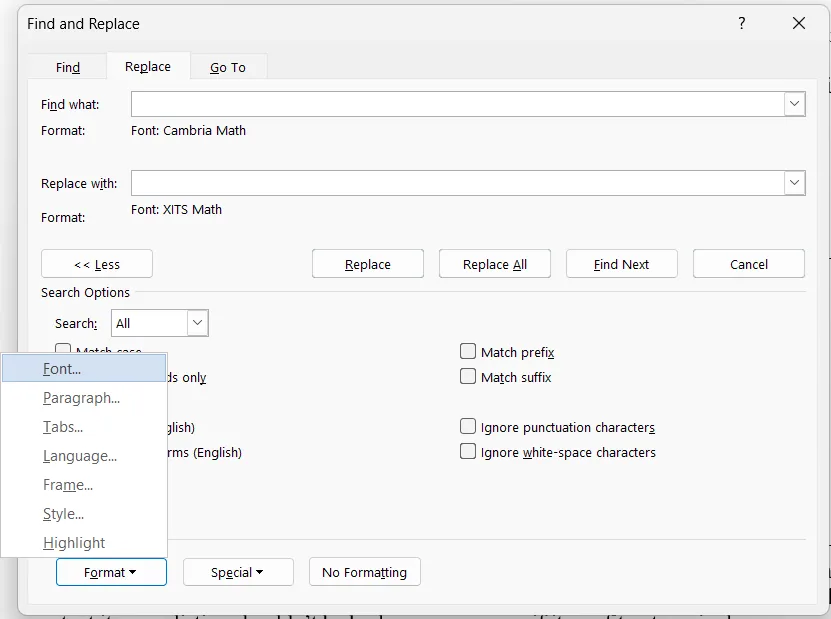
Issue: Inconsistent Equation Font
Requirements:
- Display equations should use a consistent font.
- In-line equations, variables, symbols, or functions outside of display equations should be in the same font as the paragraph text.
- Equations, expressions, and formulas should be tagged <formula>. (WCAG 1.1.1)
- In-line equations, variables, symbols, or functions outside display equations that use non-Unicode characters should be tagged <formula>. (WCAG 1.1.1)
- All <formula> tags should have natural language alternative text that describes their purpose/function. (WCAG 3.1.2)
Issue: Alt-text Required for Equations
Requirements:
- Equations, expressions, and formulas should be tagged <formula>. (WCAG 1.1.1)
- In-line equations, variables, symbols, or functions outside display equations that use non-Unicode characters should be tagged <formula>. (WCAG 1.1.1)
- All <formula> tags should have natural language alternative text that describes their purpose/function. (WCAG 3.1.2)
Related Pages
-
An open-source MathML equation editor.
-
A MathML Word add-in.
|
|
Disquisition Site Map |
|
|---|---|---|
Preparing to Graduate |
Graduate School Policies • Templates & Forms • Pre-submission Requirements • Submit Your Disquisition | |
DQKB |
General Requirements | Accessibility • Section Order • Font • Headings • Page Numbers |
| Prefatory Material | Title Page • Approval Page • Table of Contents • List of Tables, Figures, Etc. • List of Abbreviations/Symbols • List of Appendix Tables, Figures, Etc. | |
| Disquisition Body | Paragraph Text • Equations • Tables, Figures, Etc. • References / Citations • Appendices • Landscape Pages | |