Tables, Figures, Schemes, etc.
Tables, figures, schemes, and other non-text items should be integrated into the text of your disquisition rather than grouped at the end of a chapter. All non-text items should be inserted at the first natural break point (between paragraphs or at the top or bottom of the page) after the first in-text reference; ideally, a non-text item should appear on the same page with its first in-text reference, but this is frequently not possible. All tables, figures, schemes, and other non-text items must have a label, number, and title, must fit within the page margins, and must have consistent styling across all occurrences of that type of item in the disquisition.
Our guidelines outline the general requirements for non-text items in your disquisition. Beyond these general requirements, we strongly recommend that non-text items in your disquisition follow the requirements of the style manual of your discipline (with respect to titles, borders, alignment, and so forth). For example, if your citations are formatted in APA style, then your table and figure titles and notes should also follow APA style. For more information about how to format tables, figures, schemes, and non-text items, refer to the style manual for your discipline.
Contents
- Formatting Requirements
- FAQ
- Troubleshooting
- Resources
Format Guidelines: Tables, Figures, Schemes, Etc.
Quick Answers
Issue: Line Spacing
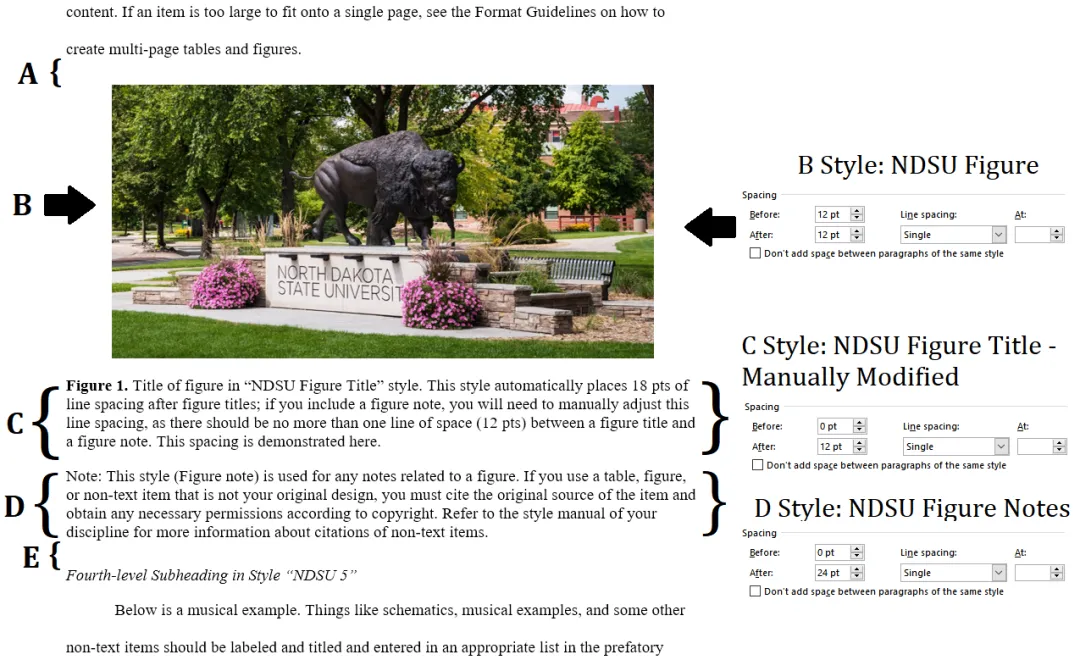
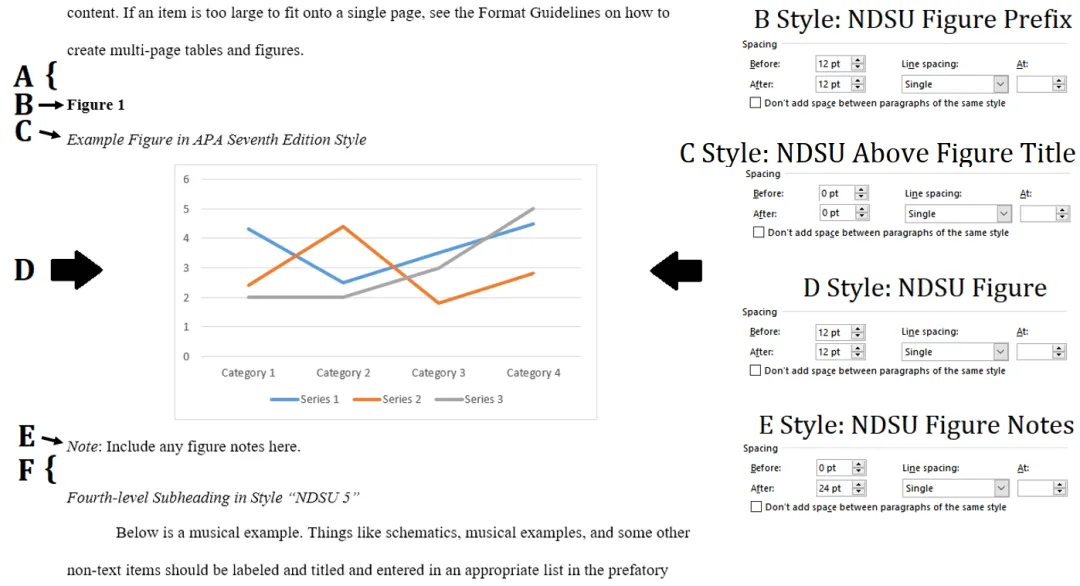
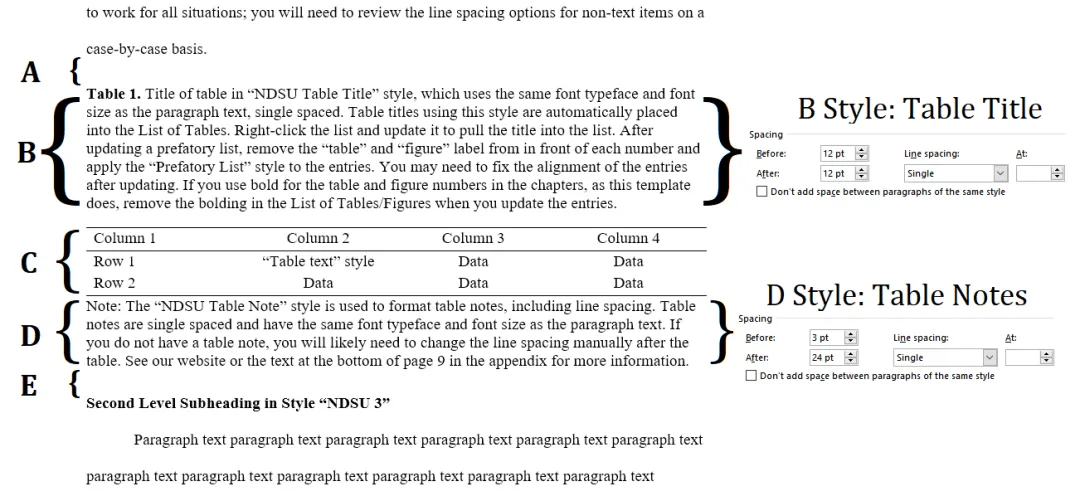
Line spacing issues are common, but easily resolved by cropping out extraneous whitespace from figures and using consistent style settings, such as those below. Since line spacing is a complex issue that relies on different components of your document to work together, the line spacing settings demonstrated here and provided in the templates cannot be taken as "one-size-fits-all" and will likely require you to modify them to fit the conventions of your discipline. For example, if you use figure titles above your figures rather below, if you have tables on landscaped pages, or if you have notes included with your non-text items, you will need to manage your line spacing options in different ways; refer to the requirements below.
Requirements:
- There should be between 1-2 lines of space (roughly 12-24 pts of line spacing) between the top of the item, including its title if present, and the paragraph text, heading, or non-text item. The amount of space below the item, including its title or notes if present, should be equal to the amount space above the item.
- In order to help separate the textual elements of non-text items (titles, notes, etc) from the surrounding paragraph text, the Graduate School recommends 24 pts of line spacing above and below (including their title and notes) non-text items. However, this may not as simple as setting the line spacing to 24 pts; see the figures below for more information.
- Do not include line spacing between non-text items and the top page margin.
- The amount of space above and below an item should be consistent for all non-text items in your document.
- There should be between 0-1 lines of space between the title and/or notes of an item and the item itself.
If you are using a template document, we recommend using the Graduate School's default styles (prefixed with "NDSU") to help manage the line spacing around and within tables, figures, schemes, and other non-text items. Using our template's styles for their respective items ensures consistent line spacing above and below items, but these styles will likely require modification because there is no "one-size-fits-all" formula since formatting conventions vary widely across disciplines--for example, if the style manual of your discipline places figure titles above the figure, you will need to accomodate the figure & figure title Word styles to accommodate this.
Additionally, you will also need to crop extraneous whitespace from your figures, which may contribute to the perception of extra line spacing. To do so, click on a figure, then select the Crop tool from the Picture tab, and crop the figure as necessary to minimize the amount of whitespace around the figure.
Figure Line Spacing Examples
Table Line Spacing Examples
Issue: Non-text Items at Top of New Pages Are Not Flush with Page Margin
Requirements:
- All content in the disquisition should begin flush with the top 1” page margin.
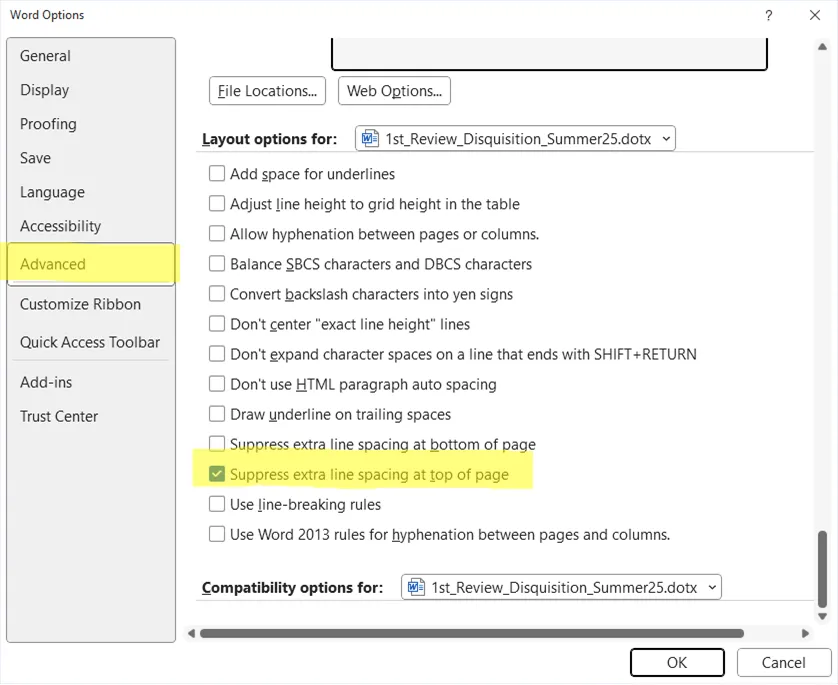
This issue commonly presents itself for several reasons. First, you may need to enable "suppress extra line spacing at top of page" to prevent line spacing settings from pushing your content off of the top 1" page margin.
- Go to File on the ribbon.
- Click Options, near the bottom left.
- Click Advanced.
- Scroll down to the bottom and enable suppress extra line spacing at top of page (shown below).
The setting above for automatic suppression does not work for some text. Notably, table titles that are above tables on landscaped pages do not always have their line spacing automatically suppressed, and may require manual adjustment. In these cases, set the line spacing to 0 pts above in the paragraph settings for that text.

Carriage returns or other line breaks may be present above the content. You can view formatting marks by enabling formatting marks by clicking the pilcrow icon (¶) in the Paragraph group on the Home tab or with hotkey CTRL+SHIFT+8. Once enabled, remove any extraneous carriage returns and line breaks. For content that must start at the top of a new page, such as a full page table or figure, we recommend setting "page break before" in the paragraph settings for that item instead of using carriage returns or line breaks because upstream formatting may change during your review.
Finally, whitespace within your figures may cause it to appear lower on the page. Extraneous whitespace should be removed from all images, using either the cropping tool in Word, found in the Size group on the Picture Format tab, or with the photo editor of your choice. Removing whitespace ensures figures are positioned correctly both horizontally and vertically on the page, and also reduces the file size of your document.
Issue: Items Unnecessarily Spanning Multiple Pages
- If a table or figure can feasibly fit on a single page alongside its title and any accompanying notes, then do not break up that content across two pages.
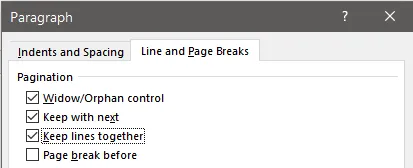
Select the entire table or figure, including its title and notes, and set "keep lines together" within the Line and Page Breaks tab of the Paragraph settings. Additionally, set "keep with next" for any accompanying text above the item, such as a title. If your table or figure has content below it, such as a figure title or table notes, enable "keep with next" for the table or figure itself to anchor it to the text.

Issue: Splitting Tables to Place a Continued Title and Header Row on Each Page
Requirements:
- When a table continues over multiple pages, the title of the item should appear on all pages with the item. On subsequent pages, add the phrase “(continued)” to the end of the first sentence of the table title. This helps the reader to remember what information they are looking at, and that it is all part of the same table.
- When a table must extend for multiple pages, the header row of the table should appear at the top of the table on the subsequent pages. This helps the reader remember what the columns of data represent.
This process is best undertaken late in your drafting process. It is reversible--you can remerge your table back together--but small shifts in content above your table may force you to re-split your table repeatedly if you split it early. Use the steps below to split a multi-page table. Despite having multiple continued titles, the table should only be listed once in the List of Tables and the page number should point to the first page of the table.
- Locate a good row at which to split the table. Ideal rows are ones that give you enough room for your title and don't cut off information awkwardly within your table. Next, place your cursor within that row, and navigate to the Table Tools -> Layout tab -> click Split Table button. Your table will continue onto the next page.
- Insert the continued title. Place your cursor above the table but not within the table, then type (or copy) your title into this space. Add the parenthetical phrase "(continued)" to the end of the first sentence of the title. For example: "Table 3.1. Yield data from FY2024-2025. (continued). Corn was significantly ..."
- Add the header row to the continued table. You cannot use the "Repeat header row" function within Word, and must add the header row manually by copying the header row from the first page of the table.
- If the table extends onto further pages, repeat steps 1-3.
The method above is the most straightforward method to split tables. There are alternative methods to split tables, such as by altering cell buffer size and borders; you're welcome to use whatever method you prefer, but your tables must be formatted consistently in accordance with our Format Guidelines. If you need technical assistance with your tables, please schedule a consultation with one of our graduate consultants.
Issue: Figure Extends Across Multiple Pages
Unlike tables, figures cannot be extended across pages. We recommend making figures as large as possible (or necessary), but the figure's number and first sentence of the figure caption (the figure title) must appear on the same page as the figure. If the figure has additional sentences within its caption/notes, they may continue onto a subsequent page with the following requirements. If the figure is composed of subfigures, see below for additional guidance.
- On the page with the figure – The figure number and title of the figure must appear with the figure itself. Reduce the size of the figure as necessary to meet this requirement.
- If the style manual of your discipline places the figure number and title below the figure, and if your figure title is more than one sentence, only the first sentence must be included. If the style manual of your discipline places the figure number and title above the the figure, conventionally the title is a single sentence already, and additional information is placed within the figure notes; if this is not the case, please contact the Disquisition Coordinator.
- On the page after the figure – The figure number and title of the figure should be repeated, so your reader can identify that the subsequent text is continued from the preceding figure. Additional figure caption/notes may be appended or added after the continued title.
- Repeat the figure number and title in full and add the parenthetical "(continued)" to the end of the first sentence of the title.
- If your style manual places the figure number and title on separate lines, such as APA, you may elect to repeat the figure number, the figure title, or both on the same line. Do not repeat the figure number and title on separate lines.
- Repeat the figure number and title in full and add the parenthetical "(continued)" to the end of the first sentence of the title.
Subfigures
If your large figure is composed of many subfigures that all fit onto a single page, we often recommend breaking them up into new, distinct figures rather than trying to fit them all onto a single page. Larger figures are often easier to read and parse for readers. Note that among other accessibility requirements, text within figures must be easily readable at 100% zoom.
If your large figure is composed of subfigures and these subfigures extend across multiple pages, you must break them up into new, distinct figures that can each at least fit onto a single page; unlike tables, figures may not be subdivided across pages--only their caption text may extend across pages, as described above.
|
|
Disquisition Site Map |
|
|---|---|---|
Preparing to Graduate |
Graduate School Policies • Guidelines & Templates • Pre-submission Requirements • Submit Your Disquisition | |
Formatting Wiki |
General Requirements | Accessibility • Font • Headings • Page Numbers |
| Prefatory Material | Title Page • Approval Page • Table of Contents • List of Tables, Figures, Etc. • List of Abbreviations/Symbols • List of Appendix Tables, Figures, Etc. | |
| Disquisition Body | Paragraph Text • Equations • Tables, Figures, Etc. • References / Citations • Landscape Pages | |
| Appendices | Appendices • Tables, Figures, Etc. | |