Dropping Individual Classes
NOTE: Prior to dropping any classes, please review the following webpage: Dropping Classes vs. Withdrawing from the Semester.
DO NOT USE THE INSTRUCTIONS BELOW if you are planning to withdraw from ALL classes (i.e., withdraw to zero credits). Instead, complete the Cancel/Withdraw to Zero Credits form in Campus Connection. Attempts to manually drop all individual classes online will be unsuccessful and may negatively impact tuition refund eligibility.
REMINDER: Before dropping a class or withdrawing from the term, you may find it helpful to connect with available resources, such as your advisor for academic guidance or One Stop for questions about financial aid. While it's not required, these resources can help you make an informed decision. Remember, you're responsible for meeting all deadlines, so be sure to reach out early enough to get the information you need before the deadline.
- Log in to Campus Connection
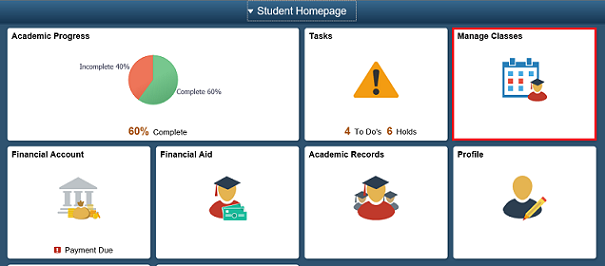
- Click on the Manage Classes tile
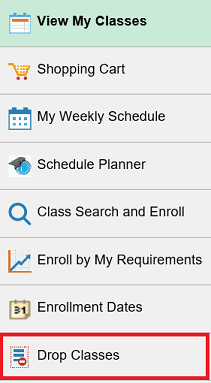
- Click on Drop Classes in the left NavCollection
- If you are enrolled in courses for more than one semester, select the appropriate term you want to drop classes for (if necessary)
- Check the box for the class you wish to drop and click Next
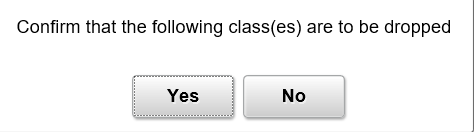
- Verify the course(s) you wish to drop and click the Drop Classes button
- Watch for "Success" or "Error" messages
- A Green Check Mark indicates the transaction was a success
- A Red "X" indicates an error prohibiting you from processing (The 'Message' section will describe why the error occurred)
- Click the My Weekly Schedule in the left NavCollection to review your list of enrolled courses